

5 Common Problems with External Hard Drives—and How to Fix Them Fast
Tired of your Problems with External Hard Drives hard drive acting up when you need it the most? External drives are essential for storing files, backing up data, and keeping things portable—but they’re not perfect. Whether your drive isn’t showing up, making weird noises, or suddenly refuses to work, don’t panic. Most issues are fixable without spending hours in frustration or buying a new one.
In this post, we’ll break down the 5 most common problems with external hard drives—and show you how to solve each one quickly and easily.
1. External Drive Not Detected by Your Computer
You plug it in… and nothing happens. One of the most frustrating issues is when your drive isn’t recognized at all.
Possible causes:
- Faulty USB cable
- Broken USB port
- Missing or outdated drivers
- The drive needs to be initialized
Quick Fixes:
- Try a different USB port or a different computer
- Replace the USB cable
- Open Disk Management (Windows) or Disk Utility (Mac) to check if it shows up
- If unallocated, initialize and format the drive
- Update or reinstall the drivers via Device Manager
👉 Pro Tip: Always use quality cables, especially with high-speed drives.
2. Clicking or Strange Noises Problems with External Hard Drives
Click… click… click… That sound is never good. Clicking, grinding, or buzzing usually means a hardware failure or damage to the internal components.
What to do:
- Stop using the drive immediately to prevent further damage
- Try connecting it with a different USB enclosure or dock
- If you hear clicking, do not open the drive—you could make it worse
- Consult a data recovery specialist if the data is important
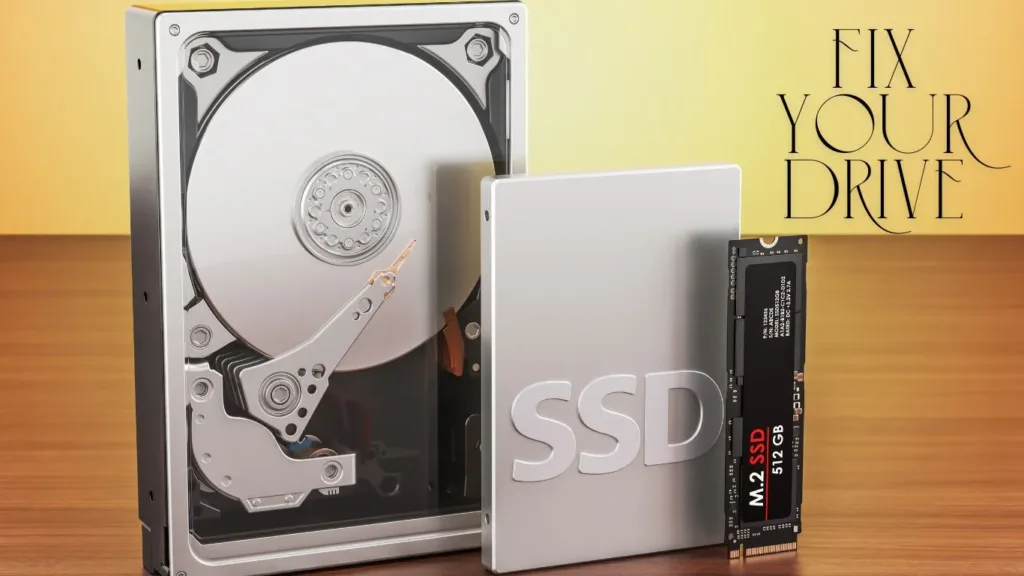
🔒 If you’re backing up important files, consider upgrading to a solid-state external drive like the Lexar SL500 1TB Portable SSD—quiet, fast, and far more reliable than mechanical drives.
3. Drive Is Slow or Keeps Freezing
A drive that lags or stalls during file transfers can be infuriating.
Common causes:
- Insufficient power from USB port
- Drive is nearly full or fragmented
- The drive has bad sectors or internal damage
Fix it by:
- Plugging directly into your computer (not a USB hub)
- Using built-in tools like CHKDSK (Windows) or First Aid (Mac)
- Defragmenting the drive (for HDDs only—not SSDs!)
- Backing up important data and replacing the drive if it continues
4. Corrupted Files or Data Loss
Sometimes, files won’t open, go missing, or appear as gibberish. This usually means file system corruption or improper handling.
What went wrong:
- Unplugging the drive without ejecting
- Malware infection
- Power interruption during transfer
Solutions:
- Use recovery tools like Recuva, EaseUS, or Disk Drill
- Always eject your drive safely before unplugging
- Run an antivirus scan
- Consider partitioning your drive to isolate backups from active files
5. Not Enough Storage Space Left
You keep deleting files, but somehow the space never clears up. Sound familiar?
Here’s why:
- Old backups and hidden system files
- Recycle Bin still holding deleted files
- Large media files taking up space
How to free up space:
- Empty your Recycle Bin
- Use storage analysis tools like WinDirStat or Disk Inventory X
- Move less-used files to cloud storage or another drive
- Upgrade to a larger SSD for more speed and storage—like the Lexar SL500 1TB Portable SSD
Final Thoughts
External hard drives are super useful—but only when they’re working right. By understanding the most common problems with external hard drives and how to fix them, you can save time, money, and your data.
Looking for a better, faster, more reliable storage option?
Check out our customer favorite: Lexar SL500 Portable 1TB SSD. Compact, lightning-fast, and perfect for everyday use.
Add comment